Splash Screens
Replace the IDE splash screen with a Material splash, a bundled wallpaper or your own image
Splash Screens let you replace the IDE’s startup splash with one that matches your theme, or with a picture of your own.
Overview
Section titled “Overview”Once enabled, the plugin renders a custom splash and uses it from the next IDE launch. It is refreshed automatically when you change the theme, the accent or the Look and Feel. Disabling it restores the stock IDE splash.
You can configure it in Settings → Material Theme UI → Splash Screen.
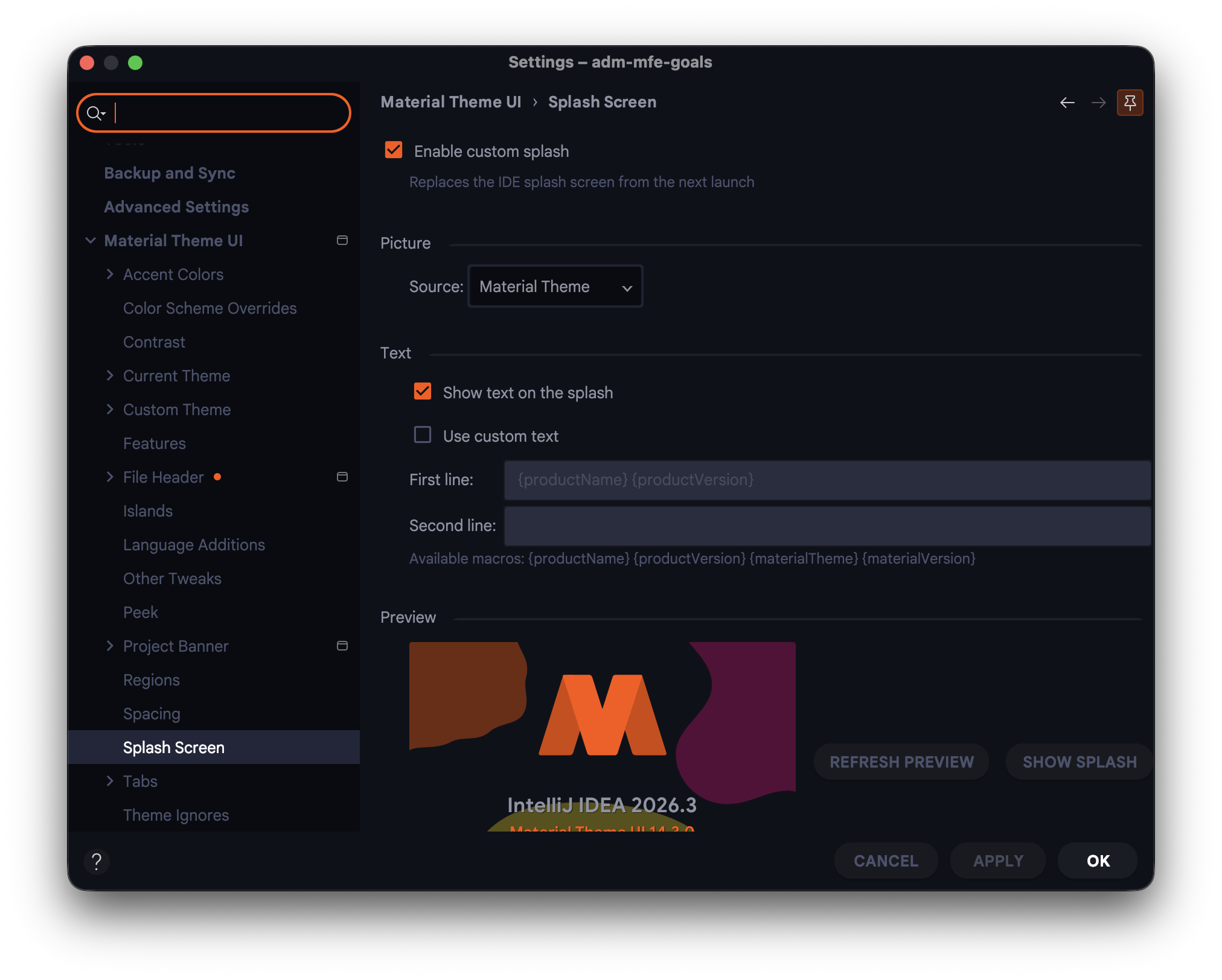
The following actions are also available from the Material Theme toolbar menu, under Splash Screen:
- Toggle Custom Splash
- Toggle Random Splash Wallpaper
- Toggle Splash Text
Picture
Section titled “Picture”Choose where the splash picture comes from with the Source option.
Material Theme
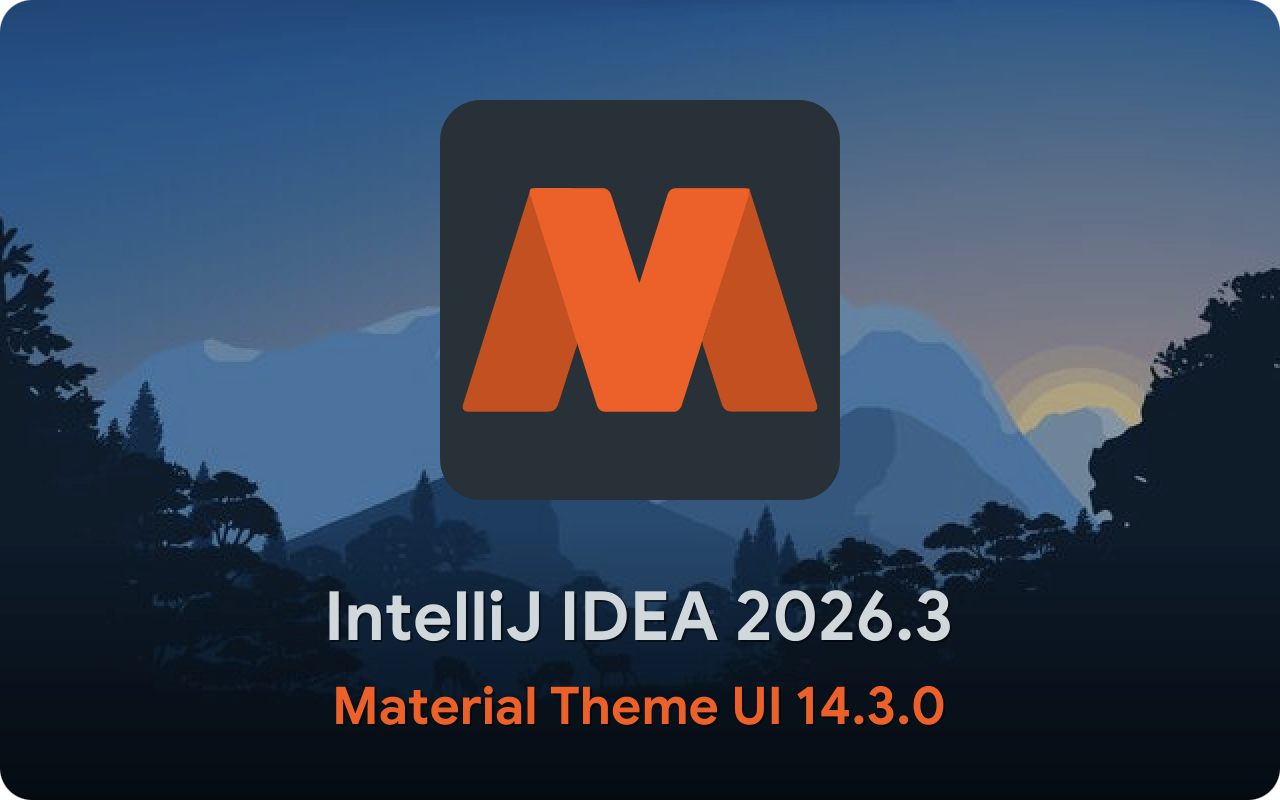
Section titled “Material Theme”Our custom touch. It is inspired by the Material You illustration, sporting our historical logo, the Google Sans Font, and small colored blobs derived from your current theme color and accent.
Bundled
Section titled “Bundled”By picking this option you will get the option to pick from a selection of prebundled Material Themed wallpapers.
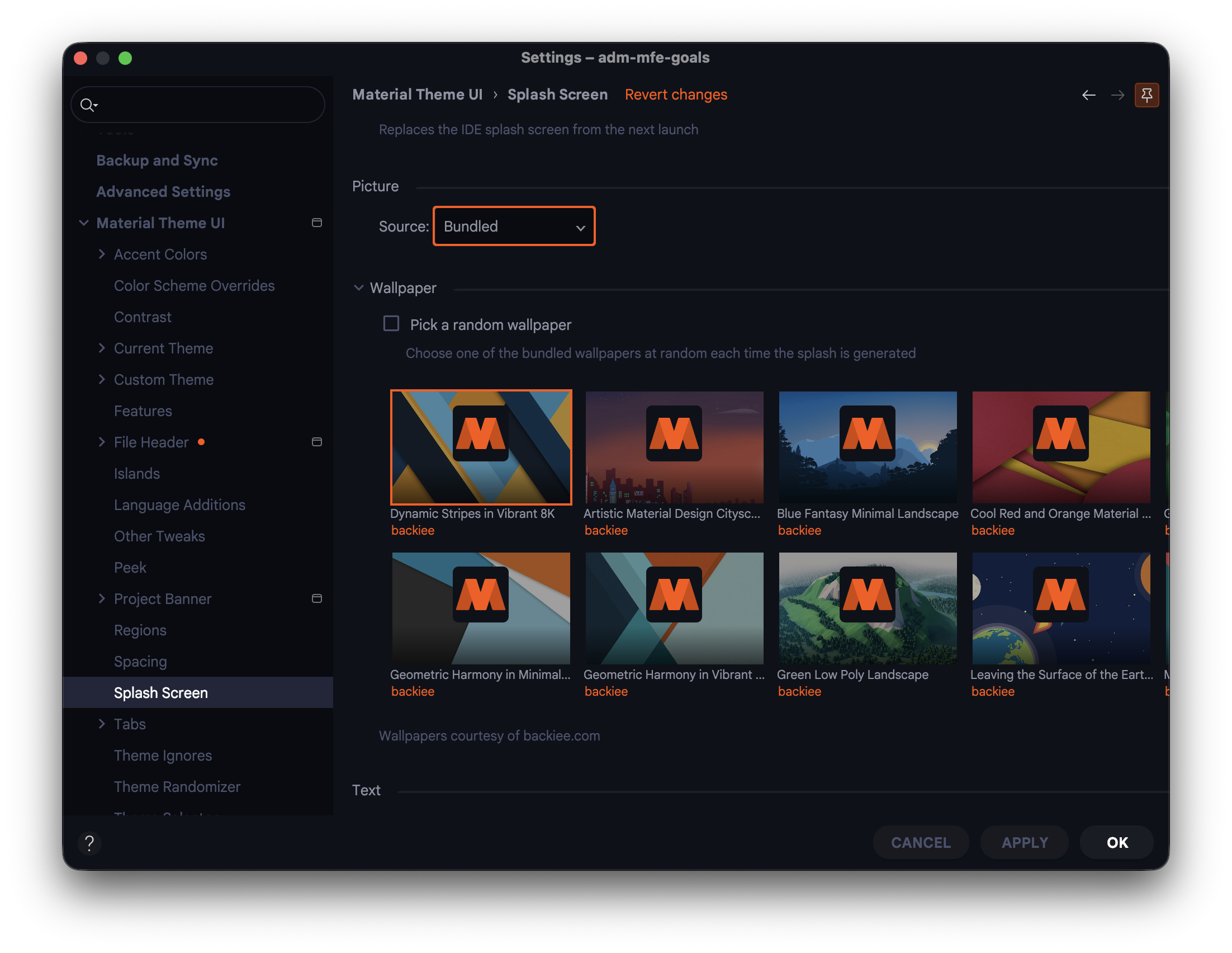
These images have been curated from the wallpaper website backiee.com. You can select one from the grid, or enable Pick a random wallpaper to get a different one at each start.
Image file
Section titled “Image file”You can also use your own splash screen by providing an image from your computer (< 5MB).
Customize Text
Section titled “Customize Text”In addition to the picture, you can also control the text that appears on the splash screen, or hide it completely.
- Show text on the splash toggles the text lines.
- Use custom text lets you edit the First line and Second line.
Inside the custom text, you can use the following macros:
| Macro | Value |
|---|---|
{productName} |
The IDE name, e.g. IntelliJ IDEA |
{productVersion} |
The IDE version |
{materialTheme} |
Material Theme UI |
{materialVersion} |
The installed plugin version |
By default the first line is {productName} {productVersion} and, for bundled wallpapers, the second line is
{materialTheme} {materialVersion}. Unknown macros are left as is.
Preview
Section titled “Preview”The Preview section shows the splash as it will be generated. Use Refresh Preview to update it after a change (such as switching themes, accent colors, or the disk image), and Show Splash to preview it as it will appear in the IDE boot sequence.
Troubleshooting
Section titled “Troubleshooting”- The splash didn’t change: the new splash is only used on the next IDE launch. Restart the IDE.
- My image is rejected: make sure the file is a valid, readable image, then apply again.
Theme
Material
Material (more)
Other
Other (2)
Other (3)